Back to the manuals overview
With every phone number, you receive two free SIP accounts that you're free to use. These SIP accounts don't come with a phone number attached. Need more accounts? You can purchase them cheaply in the portal. These standalone VoIP/SIP accounts without a phone number always start with 777.
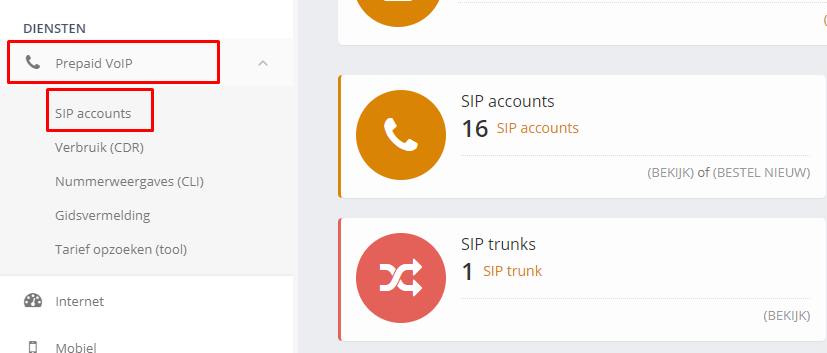
Log in with your CheapConnect account in the CheapConnect portal. Then go to Prepaid VoIP and SIP accounts in the menu
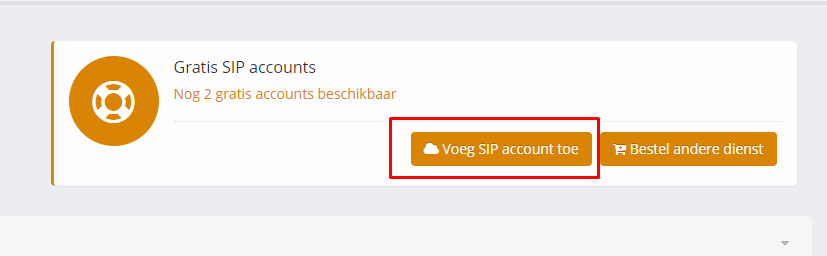
Here you'll see (if you've purchased a phone number — otherwise purchase one first) the number of free SIP accounts available. Click Add SIP account to add a free SIP account (without a phone number). If all free SIP accounts are in use, you can also add paid SIP accounts without phone numbers.
Change the registration of your device or softphone
After adding the SIP accounts, register your SIP device or softphone (SIP registration) on the newly created SIP account. It's important that no devices remain registered on the phone number you want to have ring on multiple SIP accounts.

Click Manage next to the number you want to have ring on multiple SIP accounts
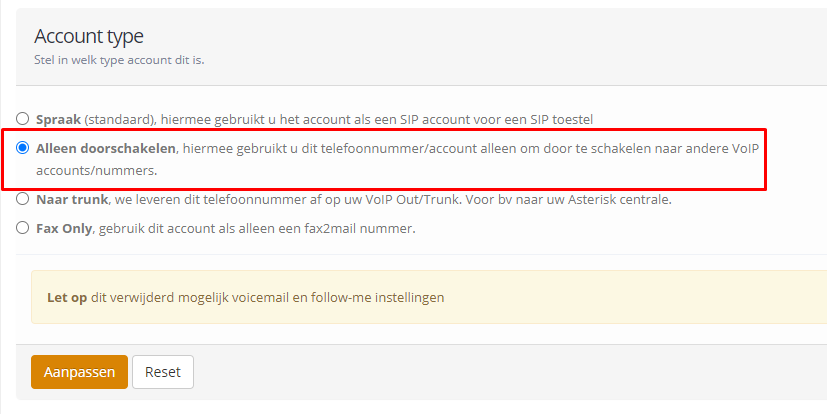
Change the phone number's account type to Forwarding only. This means SIP registration on the phone number itself is no longer possible — you'll need to register your devices' SIP on the newly created SIP accounts instead.
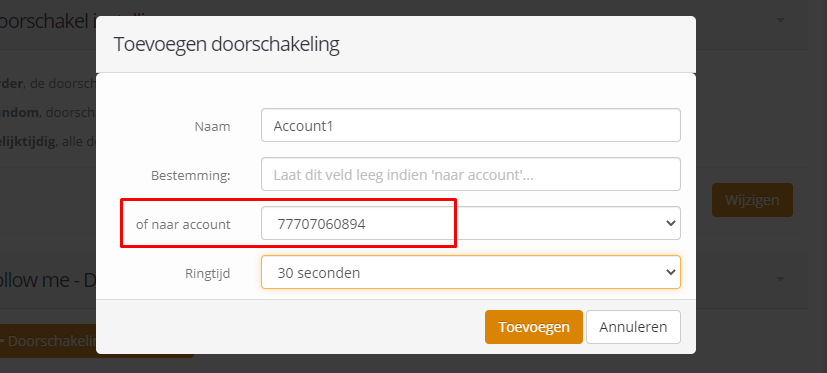
On the Follow me (forwarding) tab, add the newly created SIP accounts to the phone number's forwarding list.
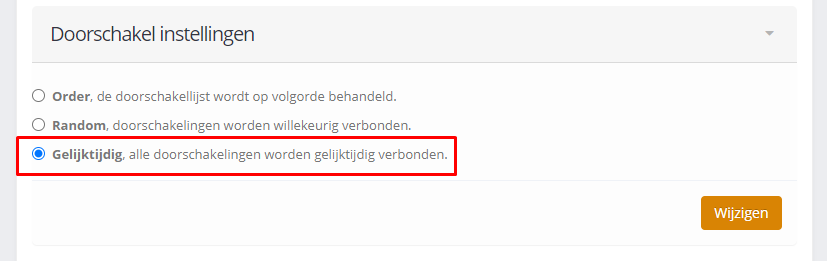
On the Follow me (forwarding) tab, also change the forwarding mode. To have multiple SIP accounts ring at the same time, choose Simultaneous
Once you've completed these steps, callers to the phone number will ring on one or more SIP accounts.
CheapConnect: Ring Multiple SIP Accounts Behind One Phone Number
At CheapConnect, it's not possible to register multiple devices on the same SIP account. You're limited to registering (SIP registration) one device or softphone per phone number and/or SIP account.
It is possible, however, to register devices on SIP accounts that don't have a phone number, and then forward the phone number to one or more of those SIP accounts. This manual shows you how to set that up.
You get two free SIP accounts with every phone number
With every phone number, you receive two free SIP accounts that you're free to use. These SIP accounts don't come with a phone number attached. Need more accounts? You can purchase them cheaply in the portal. These standalone VoIP/SIP accounts without a phone number always start with 777.
Step 1: Create SIP accounts without a phone number
Log in with your CheapConnect account in the CheapConnect portal. Then go to Prepaid VoIP and SIP accounts in the menu
Here you'll see (if you've purchased a phone number — otherwise purchase one first) the number of free SIP accounts available. Click Add SIP account to add a free SIP account (without a phone number). If all free SIP accounts are in use, you can also add paid SIP accounts without phone numbers.
Change the registration of your device or softphone
After adding the SIP accounts, register your SIP device or softphone (SIP registration) on the newly created SIP account. It's important that no devices remain registered on the phone number you want to have ring on multiple SIP accounts.
Step 2: Set the phone number to forwarding only
Click Manage next to the number you want to have ring on multiple SIP accounts
Change the phone number's account type to Forwarding only. This means SIP registration on the phone number itself is no longer possible — you'll need to register your devices' SIP on the newly created SIP accounts instead.
Step 3: Add SIP accounts to the forwarding list
On the Follow me (forwarding) tab, add the newly created SIP accounts to the phone number's forwarding list.
Step 4: Adjust the forwarding setting
On the Follow me (forwarding) tab, also change the forwarding mode. To have multiple SIP accounts ring at the same time, choose Simultaneous
Once you've completed these steps, callers to the phone number will ring on one or more SIP accounts.

